Managing Deposits and Payment Plans
Keep the agreed payment schedule and the money actually received separate. An invoice describes what is owed; recording a payment updates what has been paid.
1. Create the invoice
Start in Quickvoice. Choose your client, enter the service package and full price, and set a due date.
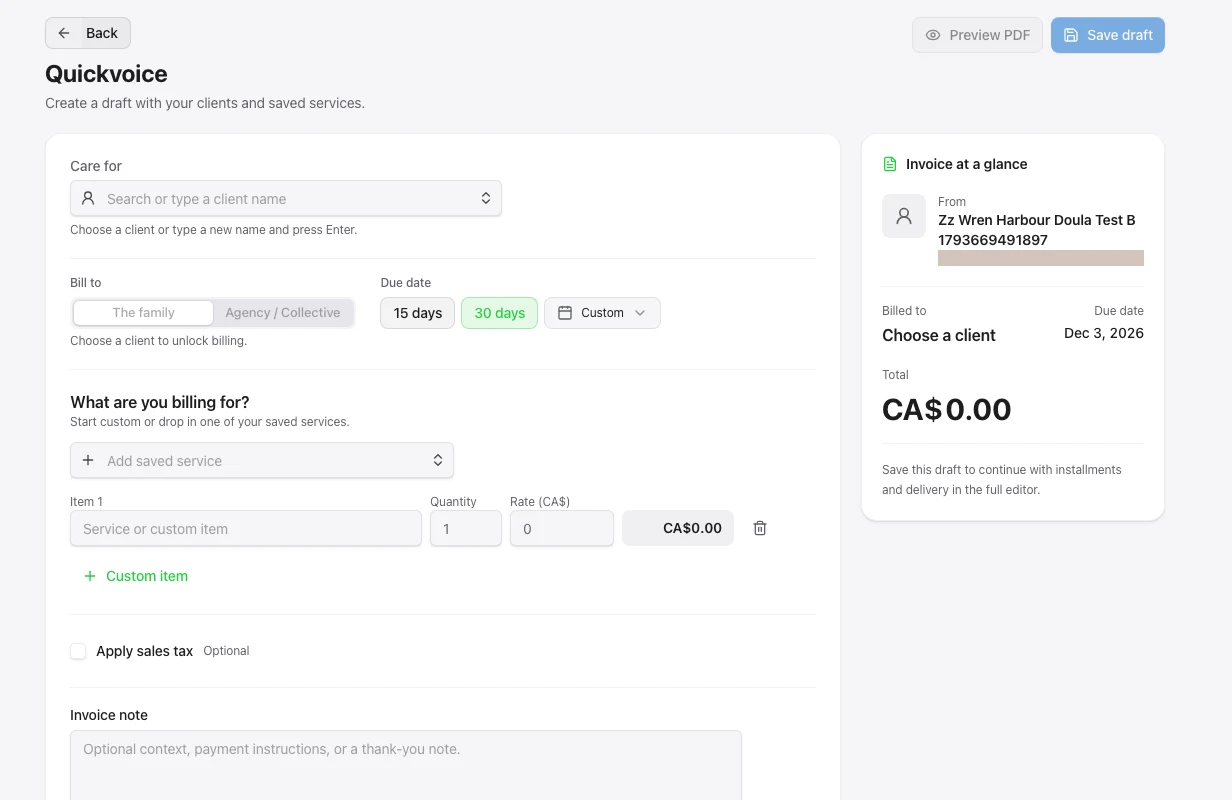
Use the invoice note to explain the agreed retainer and balance schedule. The screenshot shows the test account's entry form.
For example, a $2,000 package could have a $500 retainer and a $1,500 balance. Write the agreed dates and amounts clearly so your client knows what to expect.
2. Set out the payment schedule
Save the draft to continue in the full editor, where you can work with installments and delivery. Review the schedule before sending the invoice.
If you describe milestones in the invoice note, make sure they agree with the service agreement and invoice amounts. A note alone does not charge a client or move money.
3. Record a deposit when it arrives
- Receive the payment using your agreed external payment method.
- Open the invoice and choose Record Payment.
- Enter only the amount received, along with the payment details.
- Check the invoice's remaining balance.
For the $2,000 example, recording a $500 payment leaves $1,500 to collect. Do not mark the full invoice paid when only the deposit has arrived.
4. Keep the balance current
Record each later payment against the invoice. Before following up with a family, check your external payment records and the payments already recorded in DoulaBub.
If a balance looks wrong, review the total invoice amount and each recorded payment before adding another payment. Contact support if you need help correcting a record.
Was this article helpful?
Still need help?
Contact Yves with your question, or arrange a walkthrough together.